

Portal Guide
Appointments
Review dealership bookings in calendar or table view, filter by type, and inspect appointment-related follow-up workflows.
The Appointments section is the scheduling workspace for dealership bookings created or managed through DealerAI.
Calendar view
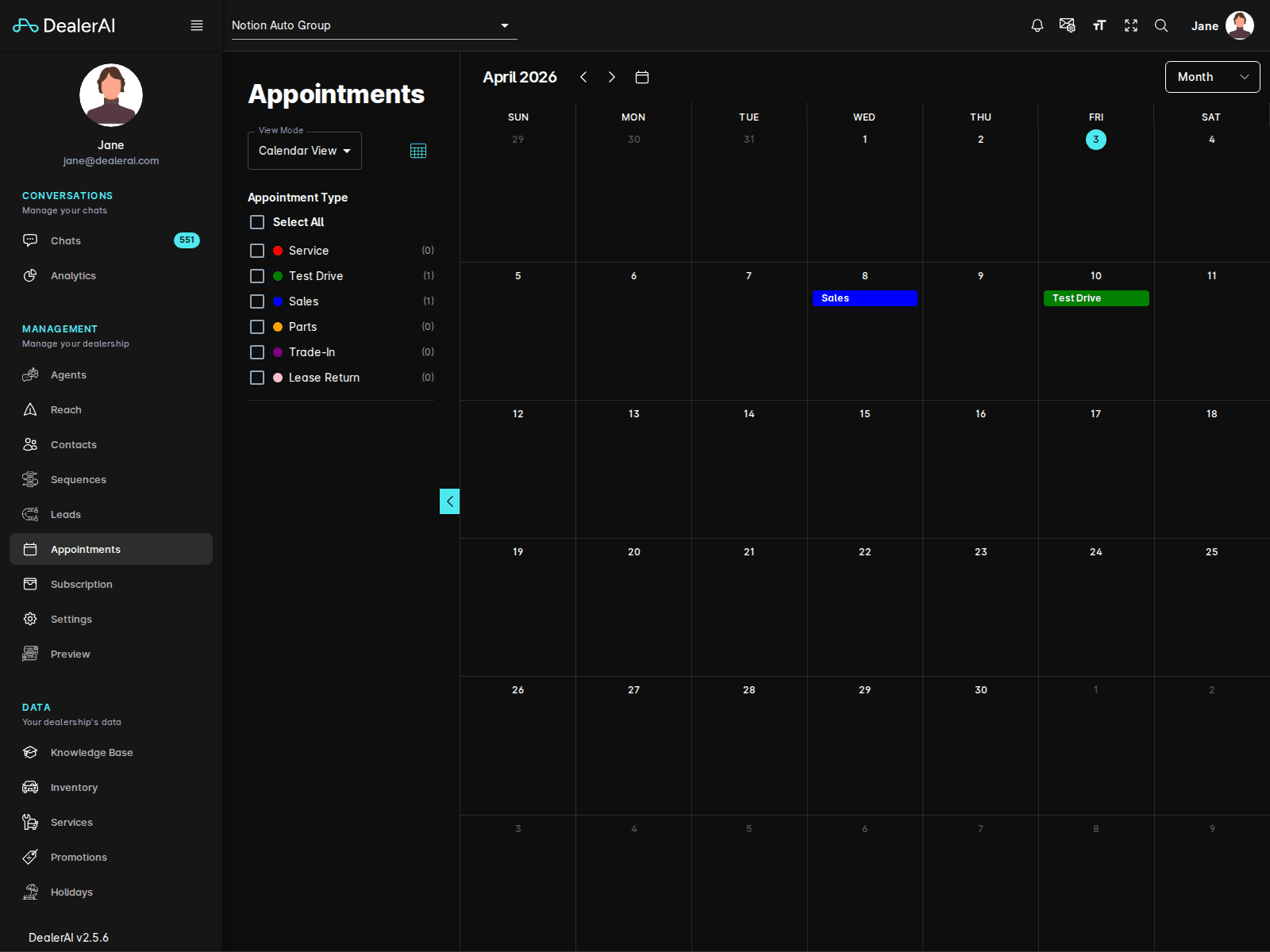
The current Appointments page supports two operating modes:
- Calendar View
- Table View
Calendar View is ideal for schedule review, while Table View is better for list-based operational work.
The sidebar includes filtering controls for:
- View Mode
- Appointment Type
The visible appointment-type filters currently include:
- Service
- Test Drive
- Sales
- Parts
- Trade-In
- Lease Return
Appointment detail
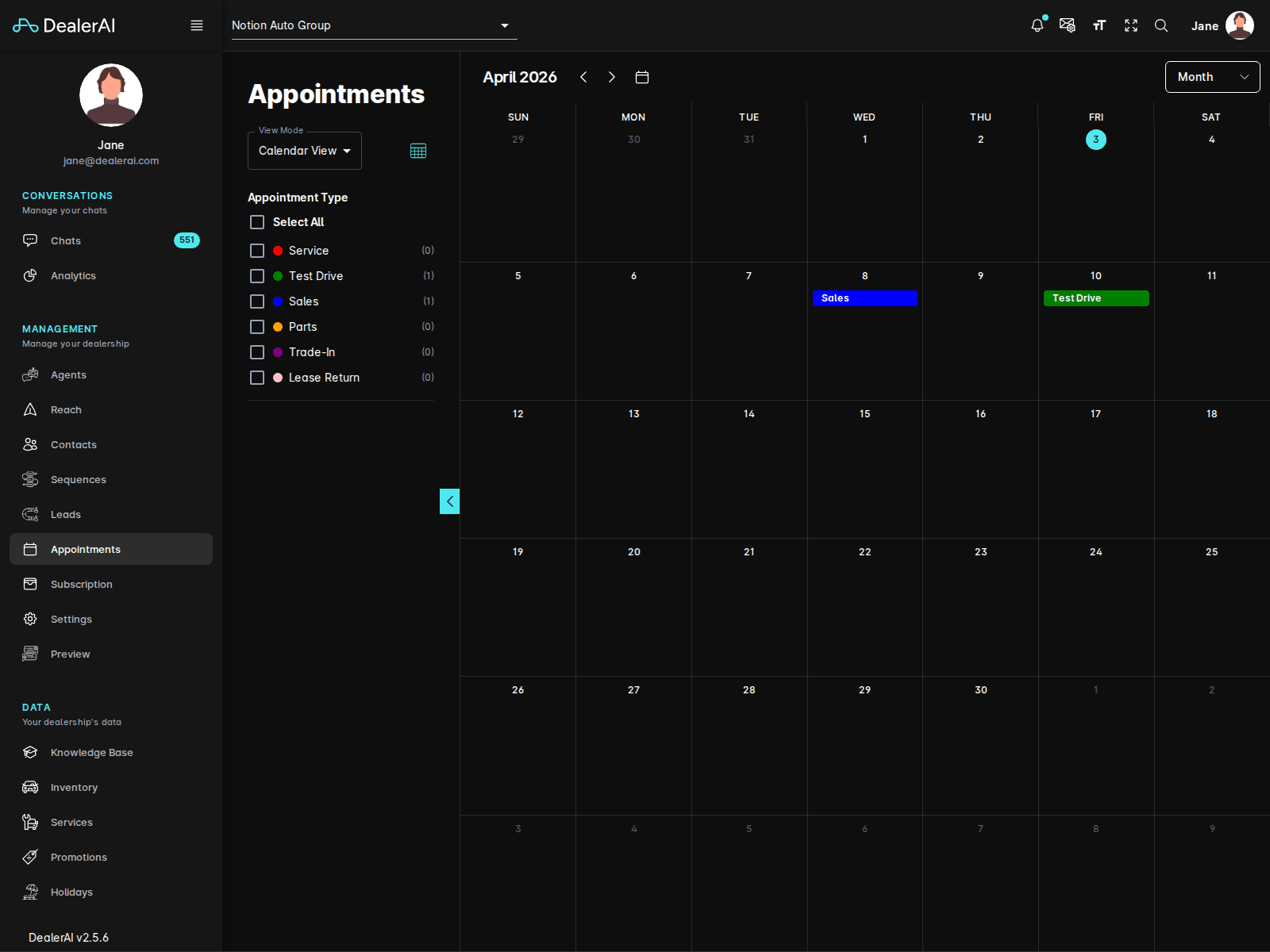
Clicking a calendar item opens an appointment detail workflow so users can review the booking more closely and continue into related follow-up actions.
The page also includes a sequence panel so staff can continue follow-up after reviewing a booking.
Typical workflow
Open Appointments from the navigation.
Choose Calendar View or Table View.
Filter by the appointment types you want to review.
Open a booking from the calendar or list.
Use related sequence or conversation tools if post-booking follow-up is needed.
Notes
- Appointments is dealership-specific.
- The appointment-type filter is especially useful when different teams handle different booking categories.
- This page is closely related to Agents and Reach, since agent settings and follow-up rules directly affect the appointment workflow.