

Getting Started
Get your dealership up and running with DealerAI by configuring your general settings and automated outreach.
This guide covers the two most important areas to set up before you start using DealerAI: your General Settings (dealership profile and channels) and Reach (automated customer outreach). Getting these right first ensures the AI introduces your dealership correctly and follows up with leads automatically from day one.
Start by signing in to the DealerAI portal at https://portal.dealerai.com.
Step 1 — Configure General Settings
Navigate to Settings in the sidebar and select your dealership. See the full Settings guide for a reference to every option.
Dealership Profile
Fill in your dealership's core details under the General Info tab. The AI uses this information when customers ask basic questions like your address, phone number, or website.
| Field | What to enter |
|---|---|
| Dealership name | The name as you want it spoken to customers |
| Website URL | Your main dealership website |
| Logo | Upload your dealership logo (used in webchat and emails) |
| Primary contact | Main switchboard phone and general enquiries email |
| Address | Full street address |
| Timezone | Your local timezone — important for appointment scheduling |
Business Hours
Under the Hours tab, set the opening and closing times for each department:
- Sales hours
- Service hours
- Parts hours
For each day, either set a time range or mark the day as closed. The AI will only offer appointment slots within these hours and will inform customers of your hours when asked.
Set up your hours before enabling appointment booking in your AI agents — the AI needs accurate hours to offer valid time slots to customers.
Activate Your Channels
Under the Activation & Features tab, enable the channels your dealership will use:
| Channel | When to enable |
|---|---|
| Webchat | You have the widget embedded (or plan to) on your website |
| SMS | You want to send and receive text messages with customers |
| You want to handle customer email enquiries | |
| Voice | You want the AI to answer and make phone calls |
| Reach | You want automated follow-up and re-engagement (see Step 2) |
Only enable channels that are fully configured. Channels that are enabled but not fully set up may result in customers receiving no response.
Webchat Appearance
If you're using webchat, configure its look under the Webchat tab:
| Setting | Recommendation |
|---|---|
| Widget title | Use your dealership name or "Chat with us" |
| Greeting message | A friendly opening (e.g., "Hi! How can we help you today?") |
| Primary colour | Match your dealership's brand colour |
| Position | Bottom-right is the industry standard |
Use Preview to test the widget appearance before going live. To embed the widget on your website, see the Webchat Installation guide.
Step 2 — Configure Reach
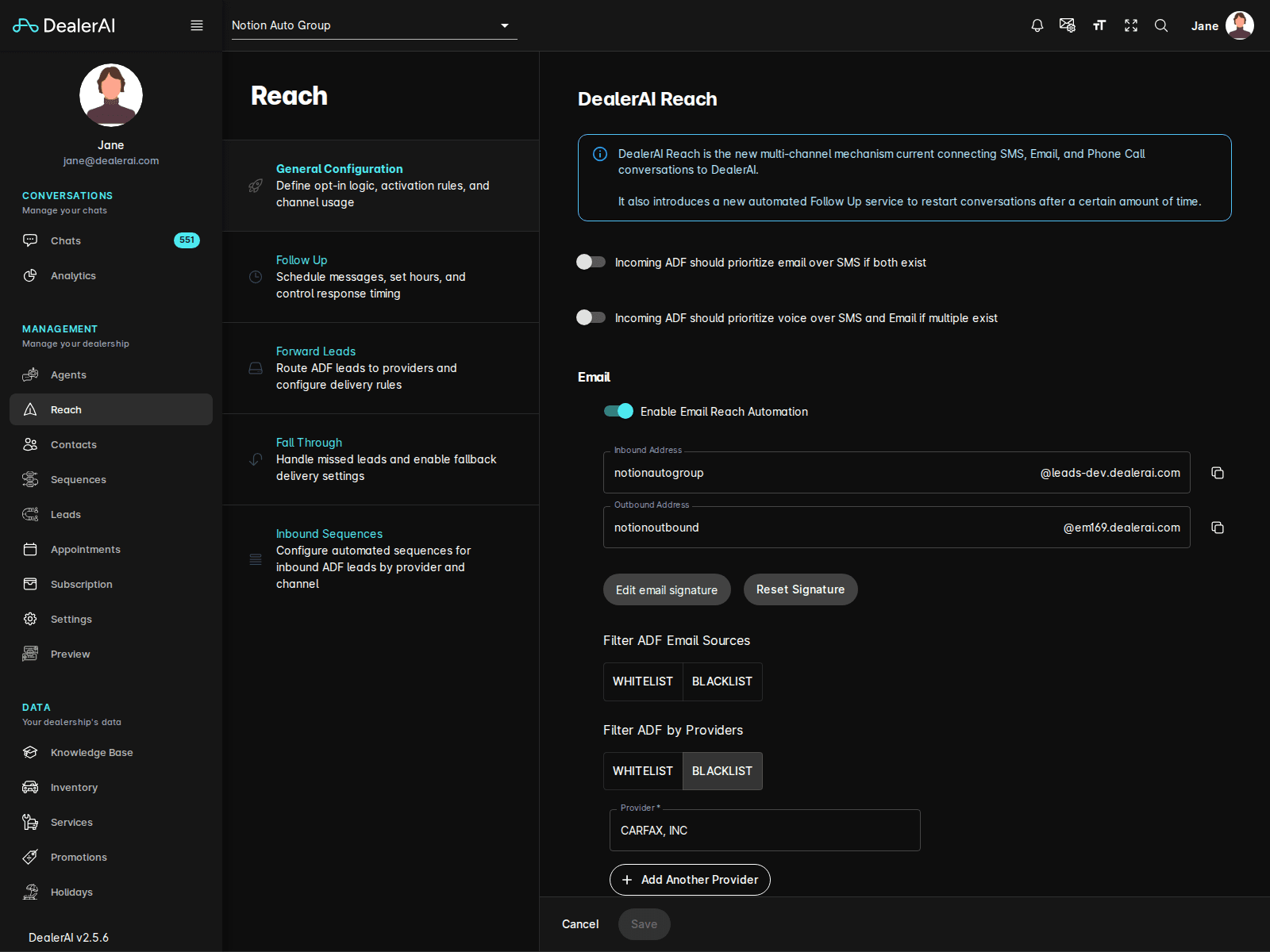
Navigate to Reach in the sidebar and select your dealership. See the full Reach guide for a reference to every option.
Reach automates your lead follow-up and re-engagement so no enquiry goes unanswered — even outside of business hours.
Enable Reach
Open the General Configuration tab and confirm:
| Setting | Recommended value |
|---|---|
| Reach enabled | On |
| Default channel | SMS (higher open rates than email) |
| Opt-out handling | Respect all opt-outs immediately |
| Timezone | Match the timezone set in General Settings |
Set Up a Follow-Up Sequence
A Follow-Up sequence automatically messages new leads who haven't responded after initial contact. This is the most impactful sequence to configure first.
Keep follow-up messages brief and conversational. Customers are more likely to respond to a natural message than a formal sales pitch.
Configure Lead Routing
Under Forward Leads, assign incoming leads from different sources to the correct AI agent:
- Leads from AutoTrader or Cars.com → Sales Agent
- Service form submissions → Service Agent
This ensures every lead is handled by an agent that knows how to respond to that type of enquiry.
Set a Fall-Through Action
Under Fall-Through, configure what happens to leads that complete all sequences without a response. A recommended starting point:
- Send a closing message: "We'll be here whenever you're ready — feel free to reach out any time."
- Flag the contact for manual review
What's Next
Once Settings and Reach are configured, continue setting up the rest of your dealership: