

Contacts
Search, review, edit, and enroll dealership contacts into sequences from the portal Contacts page.
The Contacts section is the portal's customer record workspace for dealership teams.
Contacts list
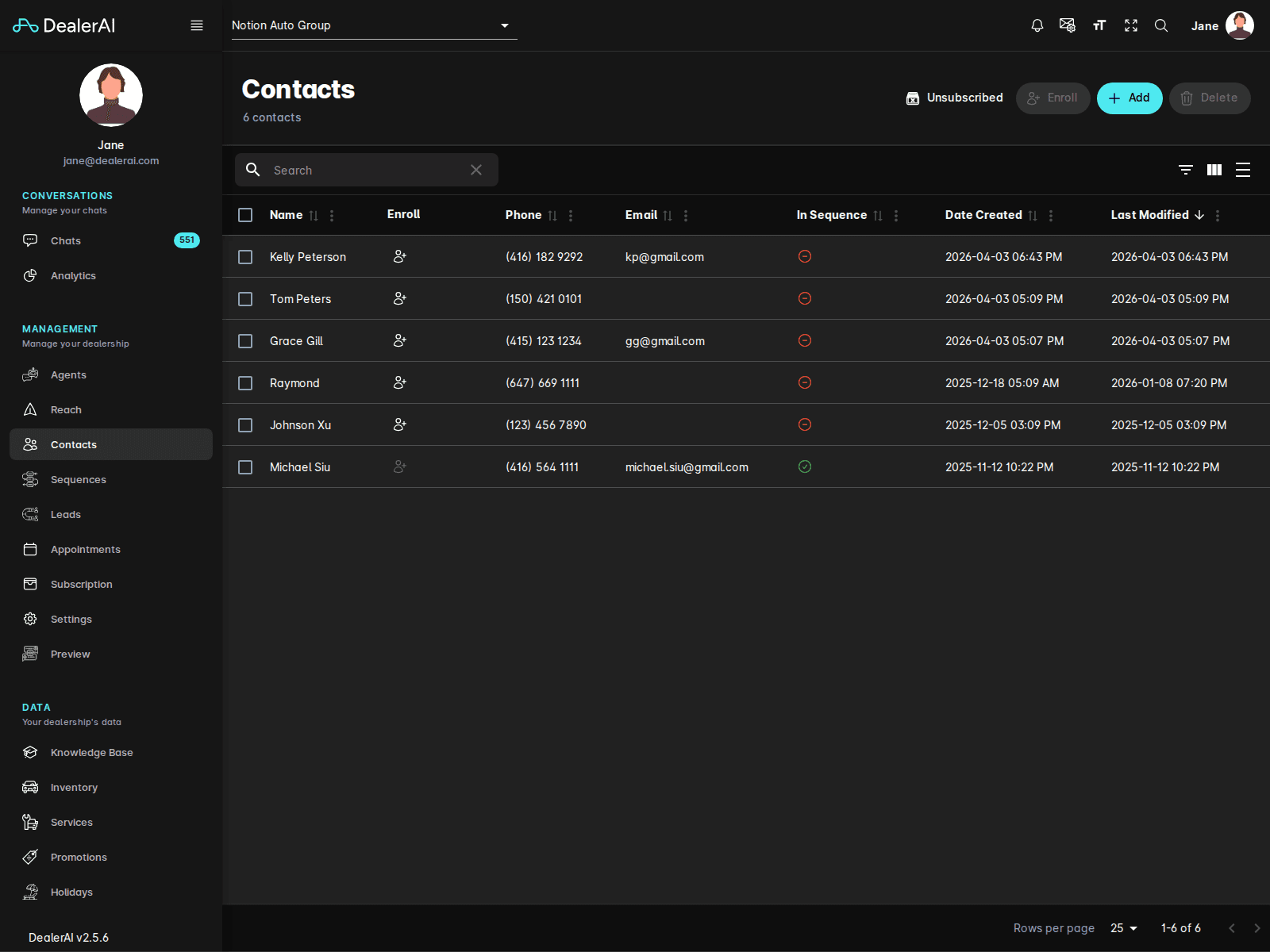
The current Contacts page includes a table with these main columns:
- Name
- Enroll
- Phone
- In Sequence
- Date Created
- Last Modified
At the top of the page, users can access actions such as:
- Unsubscribed
- Enroll
- Add
- Delete
Contact detail view
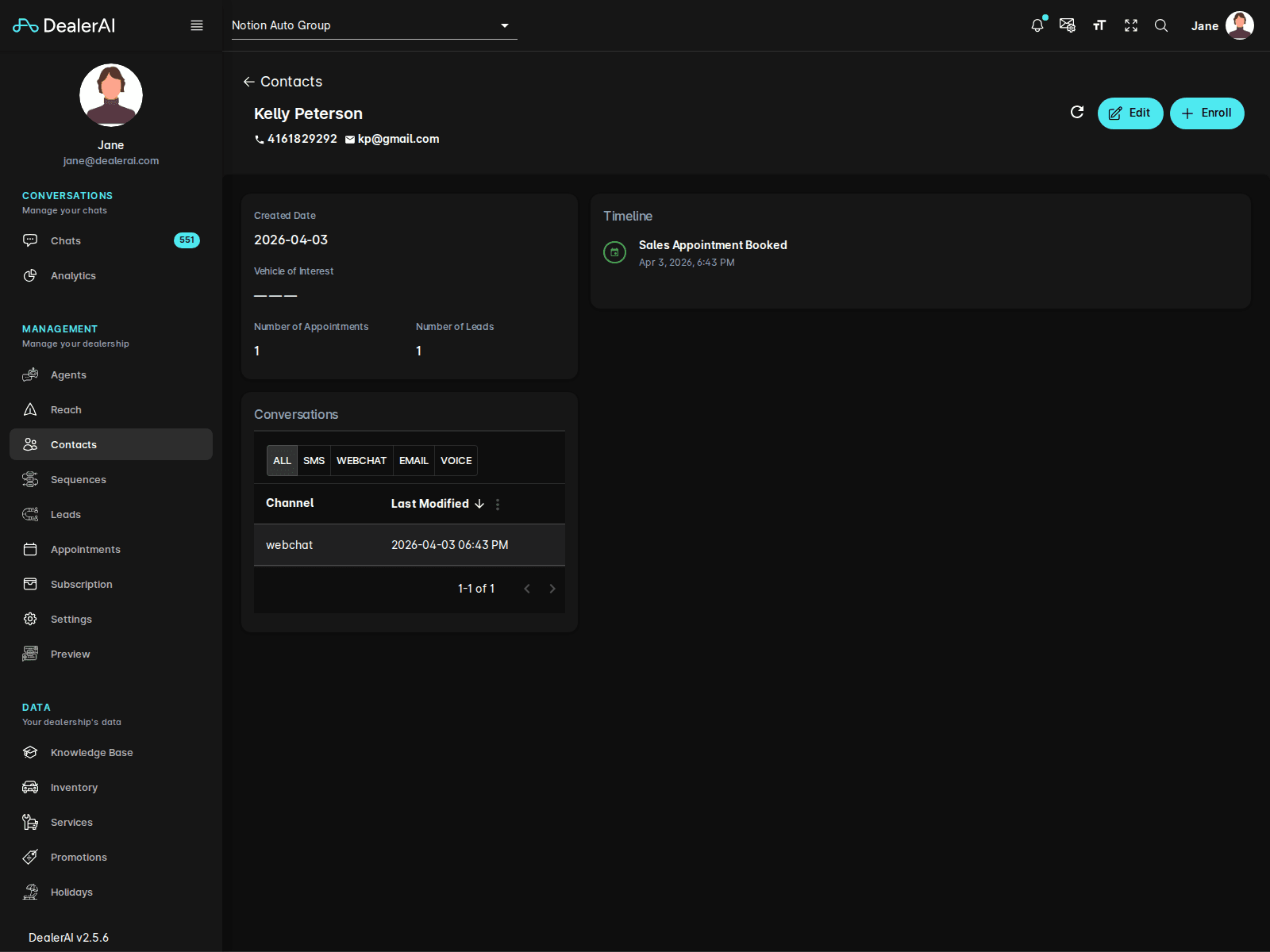
When you open a contact, the portal provides a detail workflow for reviewing and editing customer information.
Depending on the record, this can include fields such as:
- First name
- Last name
- Phone number
- Address
- Postal code
- Province
- Country
Unsubscribed users
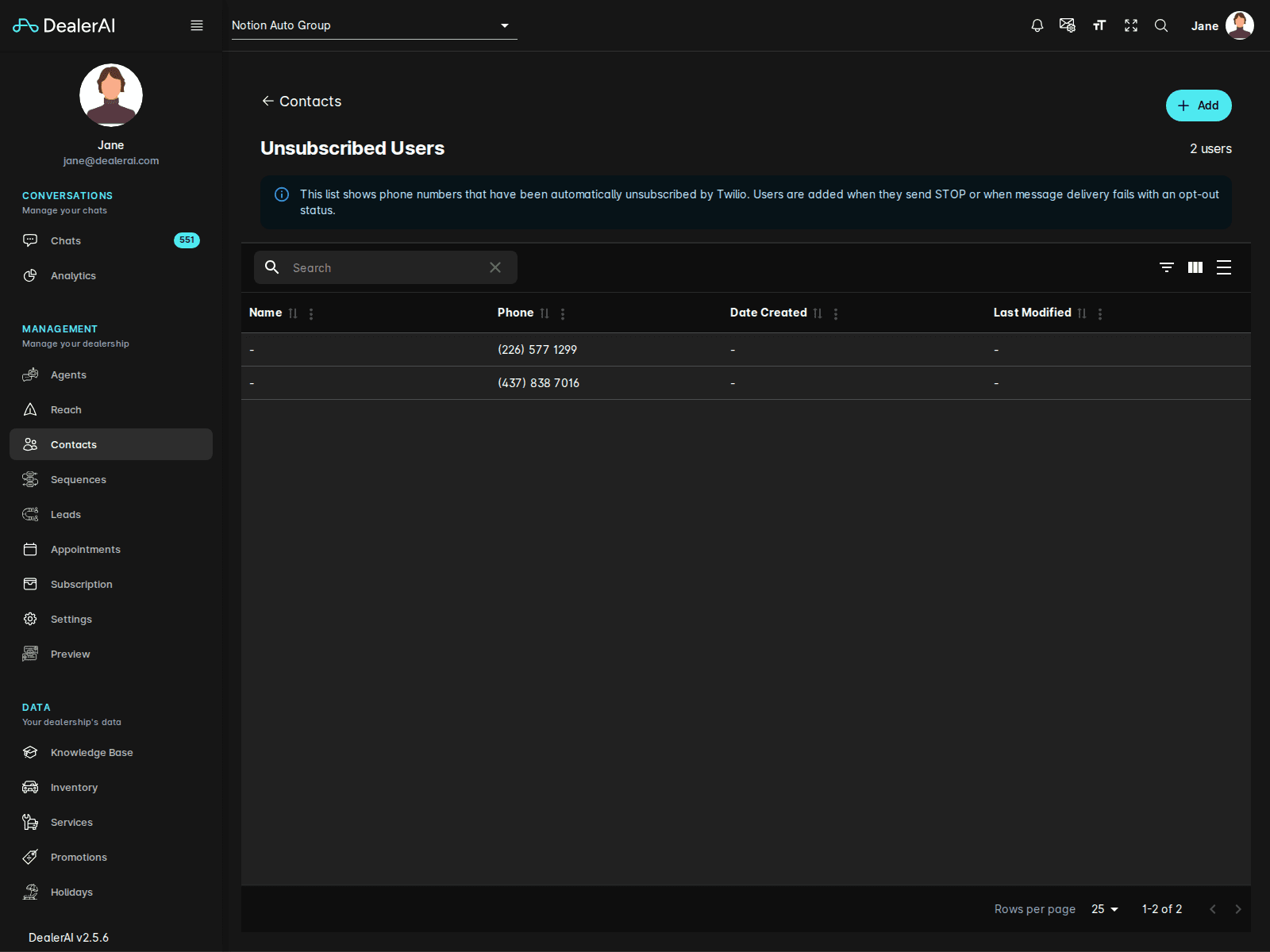
The Contacts section also includes an Unsubscribed Users subpage showing phone numbers that have been opted out or marked unsubscribed by downstream messaging behavior.
Use this area when documenting consent-sensitive communication workflows.
Sequence enrollment
The Contacts view includes an enrollment flow with fields for:
- Select Sequence
- Start Date
This makes it easy to move a contact directly into an automated outreach sequence without leaving the Contacts section.
Typical workflow
Notes
- Contacts are dealership-specific.
- The Unsubscribed flow is important when documenting consent-sensitive outreach processes.
- Contacts works closely with Leads, Reach, and Sequences in the overall customer journey.